

How-to
Screenshot Multi
Screenshot Multi
Screenshot Multi opens a URL in a headless browser. It captures one screenshot for each browser and screen resolution row in a capture matrix.
The run is asynchronous. Refresh the listing or open its details to see the current status.
Starting a run
- Open Utils > Screenshot Multi in the project.
- Enter the Page URL (full HTTP or HTTPS address).
- Select Default matrix or Custom matrix under Capture matrix.
- Optional: set Wait until, Full page, and Navigation timeout (ms).
- For a custom matrix, add each Browser and Screen resolution row from the execution context catalogs.
- Start the run.
The listing shows the new run with status PENDING.
Statuses
| Status | Meaning |
|---|---|
PENDING | Created but not submitted to the runner |
QUEUED | Accepted by the runner and in progress |
COMPLETED | Finished successfully |
FAILED | The run failed |
SUBMIT_FAILED | ComplexQA could not hand the run to the runner |
Listing
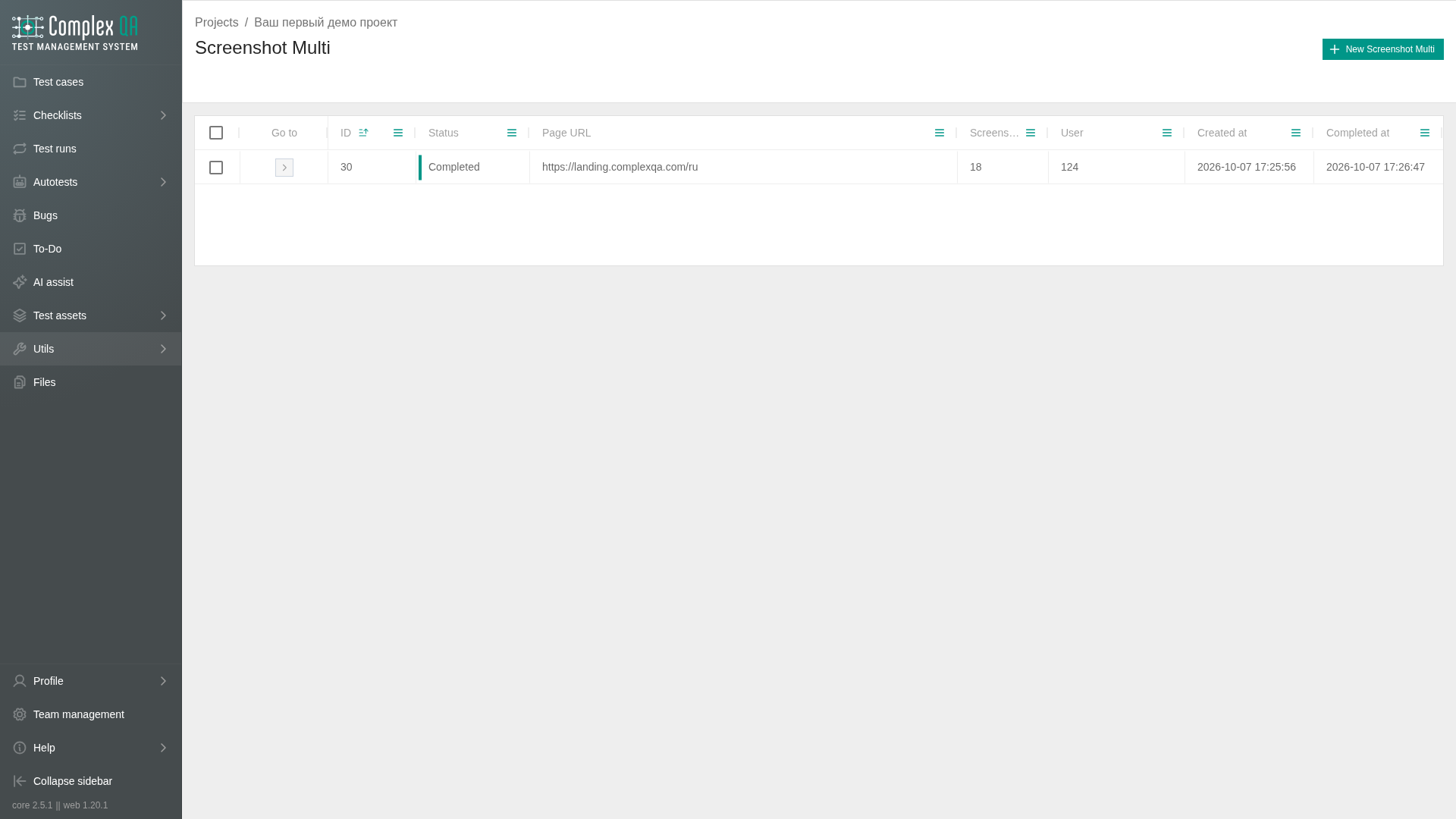
The project listing shows Execution, Status, Page URL, Screenshots, User, Created at, and Completed at. Open a row to view details.
Details
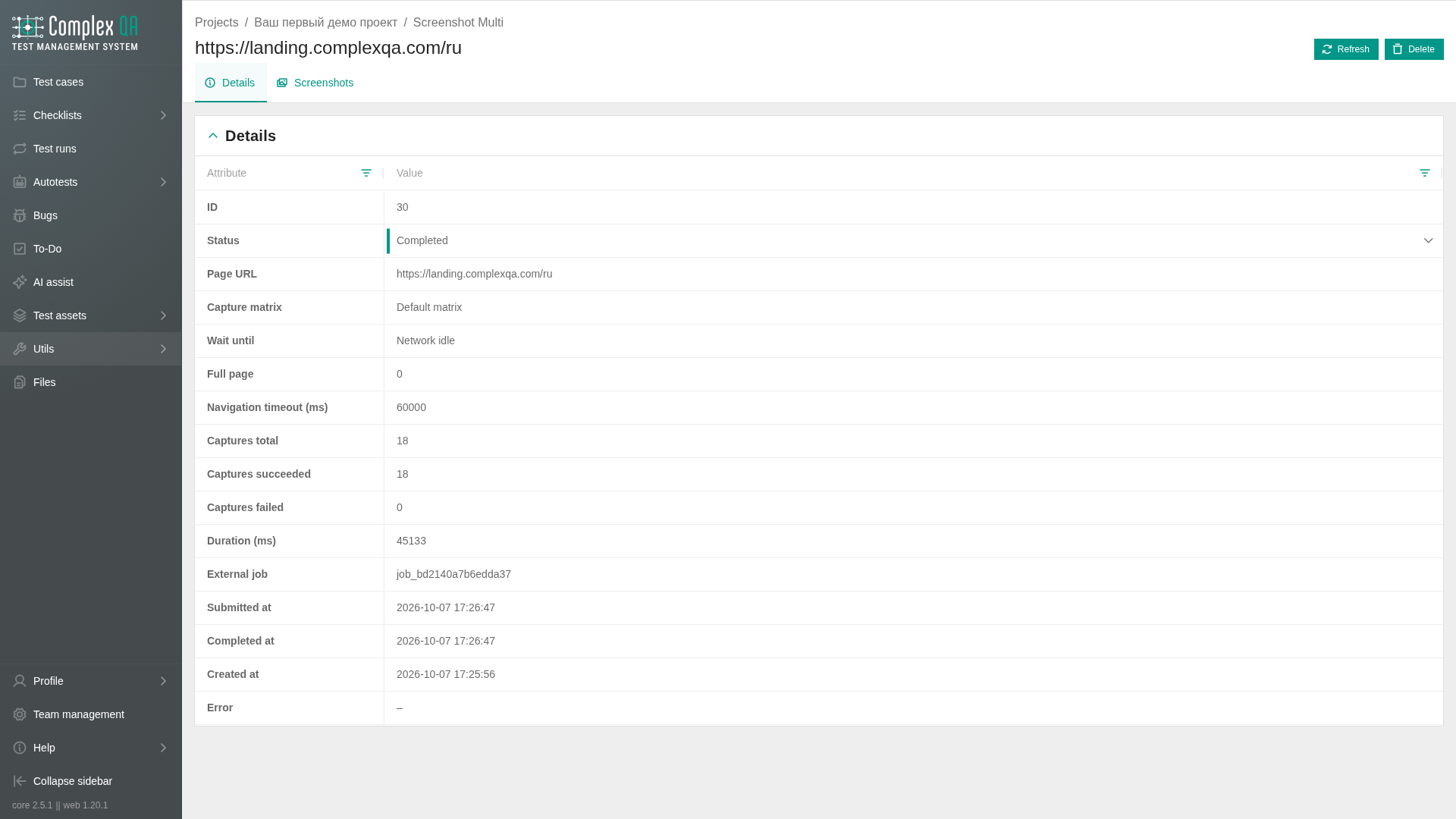
The summary shows the page URL, wait mode, full-page setting, timeout, matrix preset, capture counters, and duration. A failed run also shows its error.
The screenshot gallery contains successful captures. Each screenshot is a file in team storage with category screenshot and a link to the run.
Capture errors lists failed matrix rows with the browser, screen resolution, and error text. One failed row does not remove successful screenshots from other rows.
Events shows the run timeline, including queue, callback, and completion events.
Limits and notes
- Preview links expire. Reopen or refresh the details page to request current links.
- Large galleries can take time to load because ComplexQA resolves preview links when you open details.
- Downloads use a fresh link when the interface offers the action.
SUBMIT_FAILEDmeans the runner handoff did not succeed.- Screenshots count toward team file storage.
Did this page help?