

How-to
Profile and settings
Profile and settings
The profile screen shows your ComplexQA user account and security settings after you are signed in.
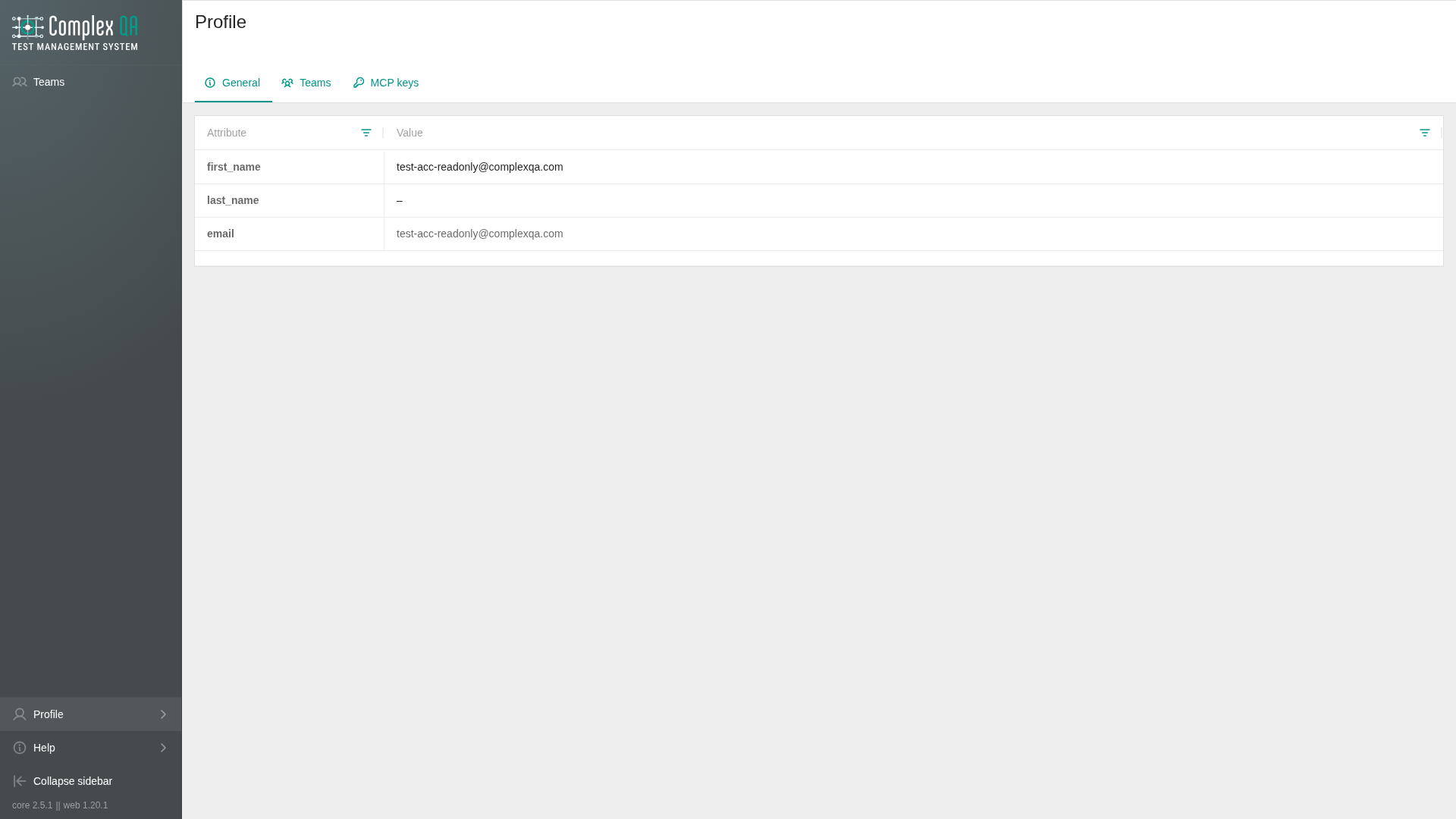
Opening the profile
- Sign in to the app.
- Open your profile from the account menu.
- Review the fields the form shows (name and other editable account attributes).
- Change what you need.
- Save.
Password
- Open the password change control on the profile or security screen (as shown in the product).
- Enter the current password when the form asks for it.
- Enter a new password (minimum 8 characters) and confirmation.
- Submit.
If you cannot sign in, use Registration and sign-in → password reset by email.
Security emails
When enabled in the product, ComplexQA can send email notices for a new successful sign-in and for a failed sign-in attempt. Treat those messages as account security signals, not as marketing mail.
MCP keys
The MCP keys tab issues a secret for an external agent. The steps, revocation, and connection address are in MCP keys.
Limits
- Profile settings apply to your user account across teams.
- Team-specific settings (members, domains, custom properties) live under Teams, not on the profile page.
Did this page help?