
Skip to content

First steps

Get from zero to your first completed test run in Complex QA.

Prerequisites: a modern browser and access to webapp.complexqa.com.


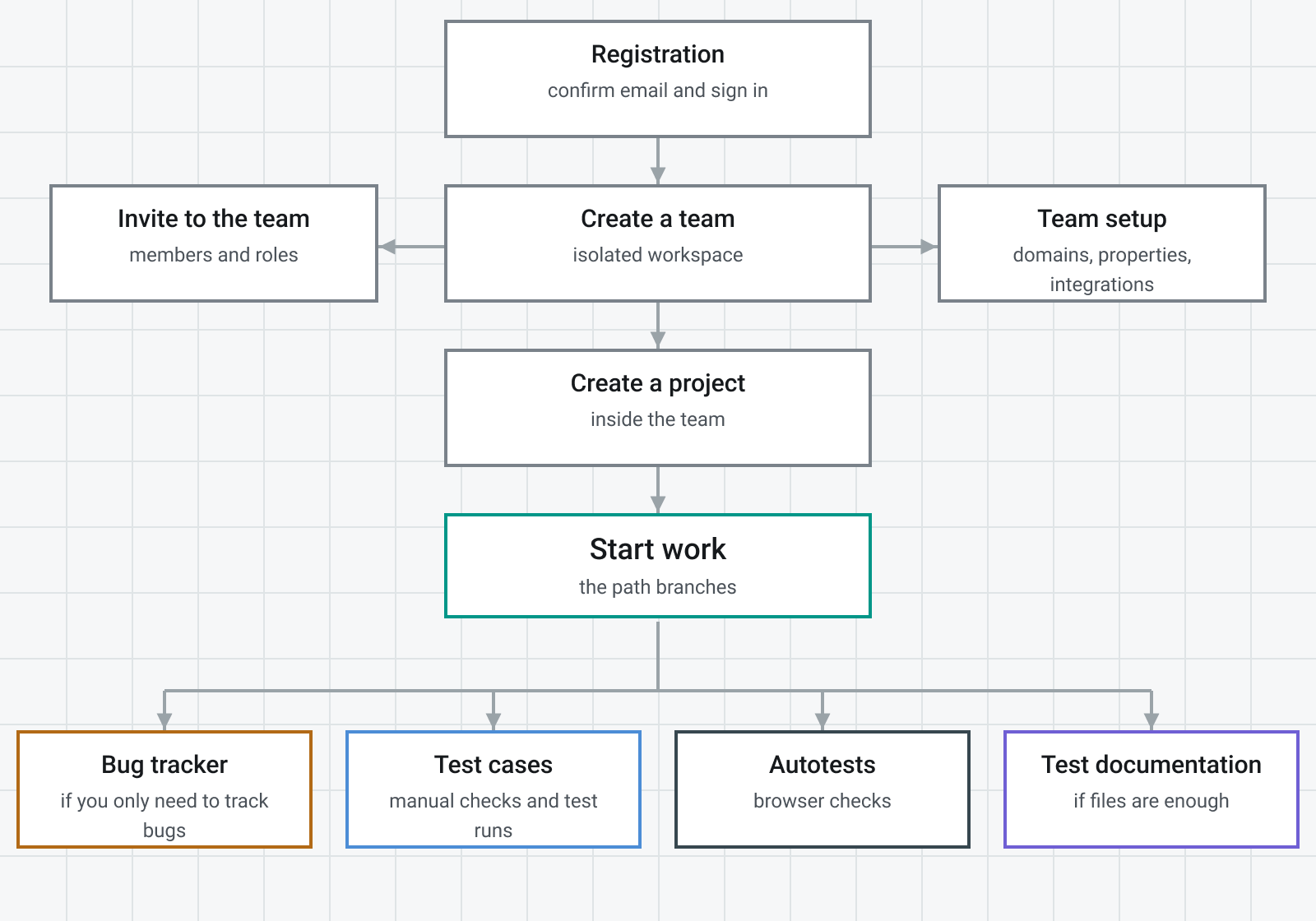
1. Register and sign in

  1. Open webapp.complexqa.com.
  2. Click Register.
  3. Enter Name, Email, and Password (minimum 8 characters).
  4. Submit — you are signed in automatically.

Details: Registration and authorization.


2. Create your team

  1. Go to Create team.
  2. Choose a team name and a unique slug (this becomes {slug}.webapp.complexqa.com).
  3. Confirm creation — you land on your team workspace as Administrator.

Details: About teams.


3. (Optional) Invite colleagues

If others will test with you:

  1. Ask them to register first.
  2. As admin, open team Members and invite their email addresses.

Details: Team members.


4. Create your first project

  1. In the team workspace, open ProjectsAdd project.
  2. Enter a Name (and optional Description).
  3. Leave Status as OPEN.
  4. Click Create project.

Details: Projects.


5. Add a simple test structure

  1. Open the project → Test cases.
  2. Create a test suite (for example Smoke).
  3. Add one test case with a title and at least one step.

Details: Test cases and suites.


6. Run your first test cycle

  1. Open Test runsCreate.
  2. Name the run (for example Smoke run 1).
  3. Include your case (or select all cases).
  4. Open the run, set each test run result to Passed or Failed as you execute.
  5. Set the run status to COMPLETED when done.

Details: Test runs · Test run results.


What’s next

TopicLink
Full workflowRecommended workflow
All entity typesTMS overview
Beta limitsLimits and access

Open the app


Version1.0
Last updated2026-06-06

Complex QA — test management system