

Element reference
Tags
Tags
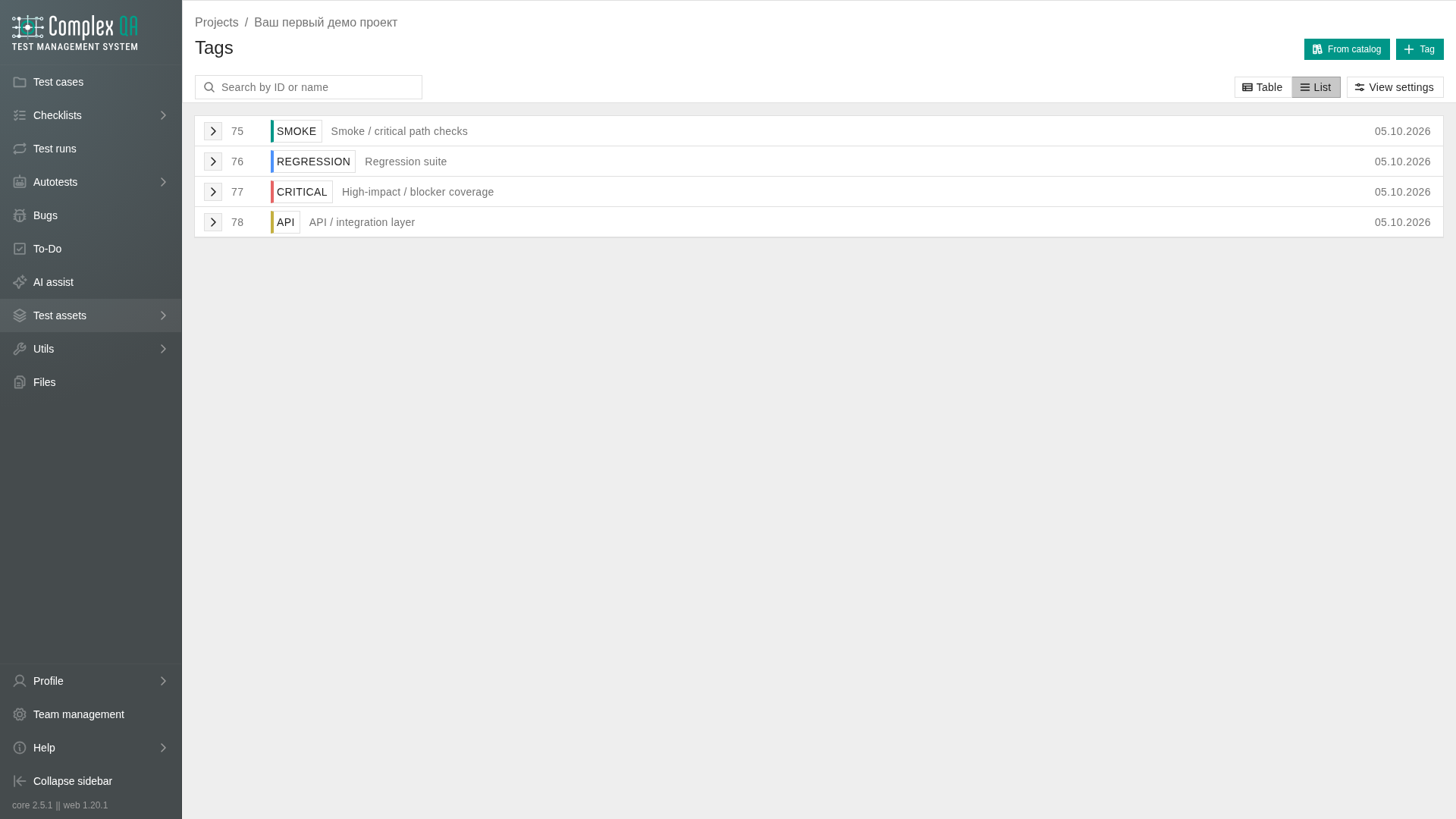
A tag is a project label you attach to elements for filtering and navigation. Tags live in a project catalog. The tag_relation relation connects a catalog tag to an element.
Relations
| Related element | How it connects |
|---|---|
| Team | Scopes the tag catalog together with the project |
| Project | Required catalog owner |
| Supported element | Receives a link to an existing catalog tag |
What you can tag
| Element | Where tags appear |
|---|---|
| Test case | Details chips and listing column |
| Bug | Details chips and listing column |
| Test run | Details chips and listing column |
| Test run result | Details chips and listing column |
| Test account | Details chips and listing column |
| Text document | Details chips and listing column |
| Autotest | Details chips and listing column |
| Object repository page | Details chips and listing column |
| Object repository element | Details chips and listing column |
Fields
| Label | Technical name | Type | Required | Validation | Default |
|---|---|---|---|---|---|
| Name | name | string | Yes | Unique per team and project, case-sensitive, max 50 characters | - |
| Description | description | HTML | No | Optional rich text | - |
| Color | tag_color_id | id | No | Color from the system palette | - |
Rules
- Open Tags in a project to create, edit, delete, or clone tags from system templates.
- Attach existing catalog tags only. Entering a free name on an element does not create a tag.
- Attaching a tag that is already linked has no effect. Duplicate links are skipped.
- An element can have no more than 10 tags.
- Suites, steps, and tags cannot receive tags.
Attach tags on details
- Open a supported element.
- Expand Tags.
- Select Add tags.
- Select tags from the project catalog.
- Apply the selection.
The selected set replaces the tag selection for that element. Tags appear as chips with a colored left bar.
Add tags to multiple elements
- Open a supported element listing.
- Select rows with the checkboxes.
- Open the context menu.
- Select Add Tags.
- Select the tags to add.
- Apply the selection.
Mass add is additive. Existing tags stay linked, and only missing selected tags are added up to the limit of 10. On Table, the same action is on the selected rows bar.
Tag details
The tag details page lets you edit the name, description, and color. Tabs group linked elements by type in read-only tables. Use Go to to open a linked element.
In the tag catalog, the name is shown with the tag color. The color is not a separate text column.
Limits
- The number of tags in a team is capped by the plan. When the limit is reached, a new tag is not created. Live numbers are on the team Total usage tab.
Did this page help?